
Review the player list
Open the session and expand RSVPs. The list shows the organiser and current player statuses. Paid sessions can show reservation or payment-related states; free sessions show RSVP states.
What the RSVP indicators mean
The icon at the end of a player row is a quick status guide:
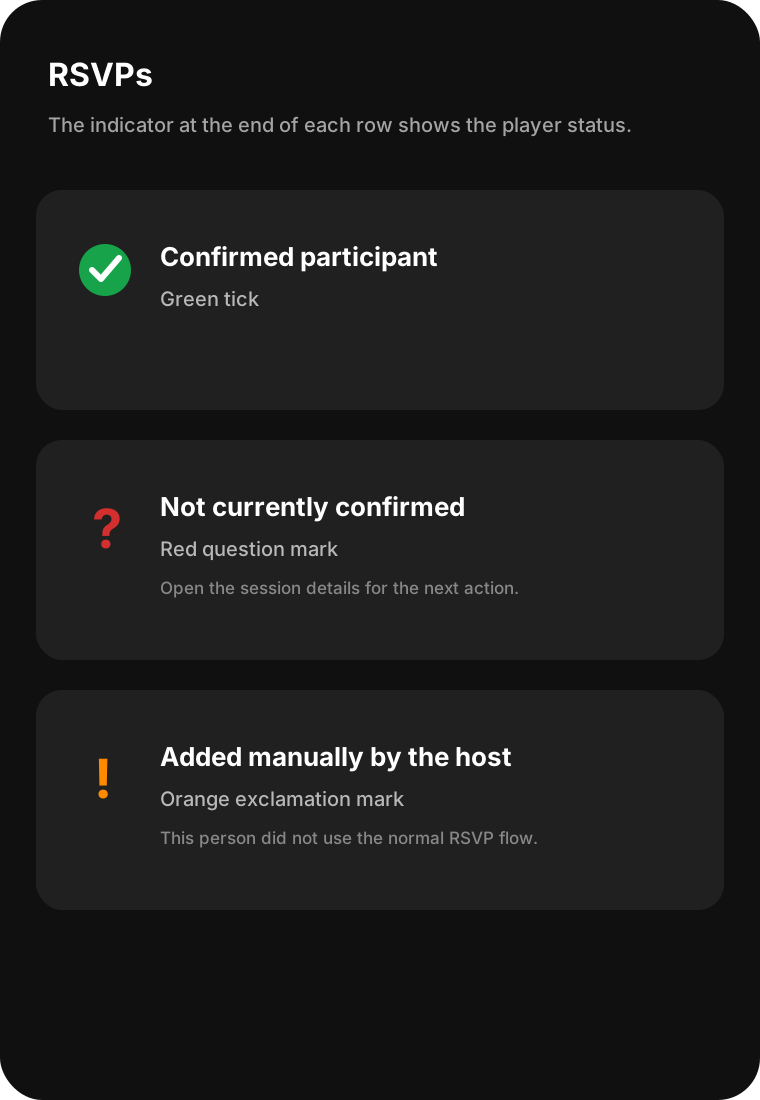
- Green tick — the player’s place is confirmed. For a pre-paid game, uDink has received and confirmed the payment. For a post-paid game, a valid payment method has been recorded. For a free game, the player’s RSVP has been accepted. This shows that the player is expected on the list; it does not mean they have checked in yet.
- Red question mark — the player’s place is not confirmed yet. For a paid game, payment may not have been completed, or a valid payment method may not have been recorded. Open the session details to see what action is needed.
- Orange exclamation mark — the game host added this person manually. They did not join through the normal RSVP flow, so their payment or RSVP status may need to be handled separately.
The host is shown with the Host label rather than one of these indicators.
When a player’s payment is completed or their cancellation is processed, the session host receives an email and an in-app notification. Check the RSVP list and session payment details for the latest status.
For a concise organiser workflow for keeping one current player list, see how to manage sports RSVPs.
The app also displays the waitlist and checked-in players where those features apply. For eligible sessions, the host may also see actions to remove an RSVP player or manually add a player. These actions depend on the session state, capacity and payment rules.
For the detailed workflows, read how to remove a player from an eligible session and how to manually add a player to an eligible session. Public-group owners or administrators may have these controls for eligible public-group sessions; private-session management remains with the host.
Use check-in tools
During the check-in window:
- the organiser can display the host QR and check in as host;
- eligible players can scan the host QR; and
- the organiser can review the checked-in list.
Check-in data can affect the trusted count used for Reserve First, Pay Later settlement. Confirm that the checked-in list is accurate before the session ends.
Use session chat
The game host and confirmed participants can join the session chat. A participant can access it once their participation in that session is confirmed.
Chat supports text and images. A user can edit or delete their own message. The organiser and eligible public-group administrators can pin messages.
Use chat for operational updates such as court changes or arrival instructions. Do not post payment card details, private contact information or sensitive personal data.
What happens next?
Keep the session detail current before play, then review check-ins after the session. Export the participant list only when you need an operational copy and handle it securely.